

The spreadsheet
Two hundred rows, three versions, and the one the painter has is from last Tuesday. Nobody knows which items are actually done.
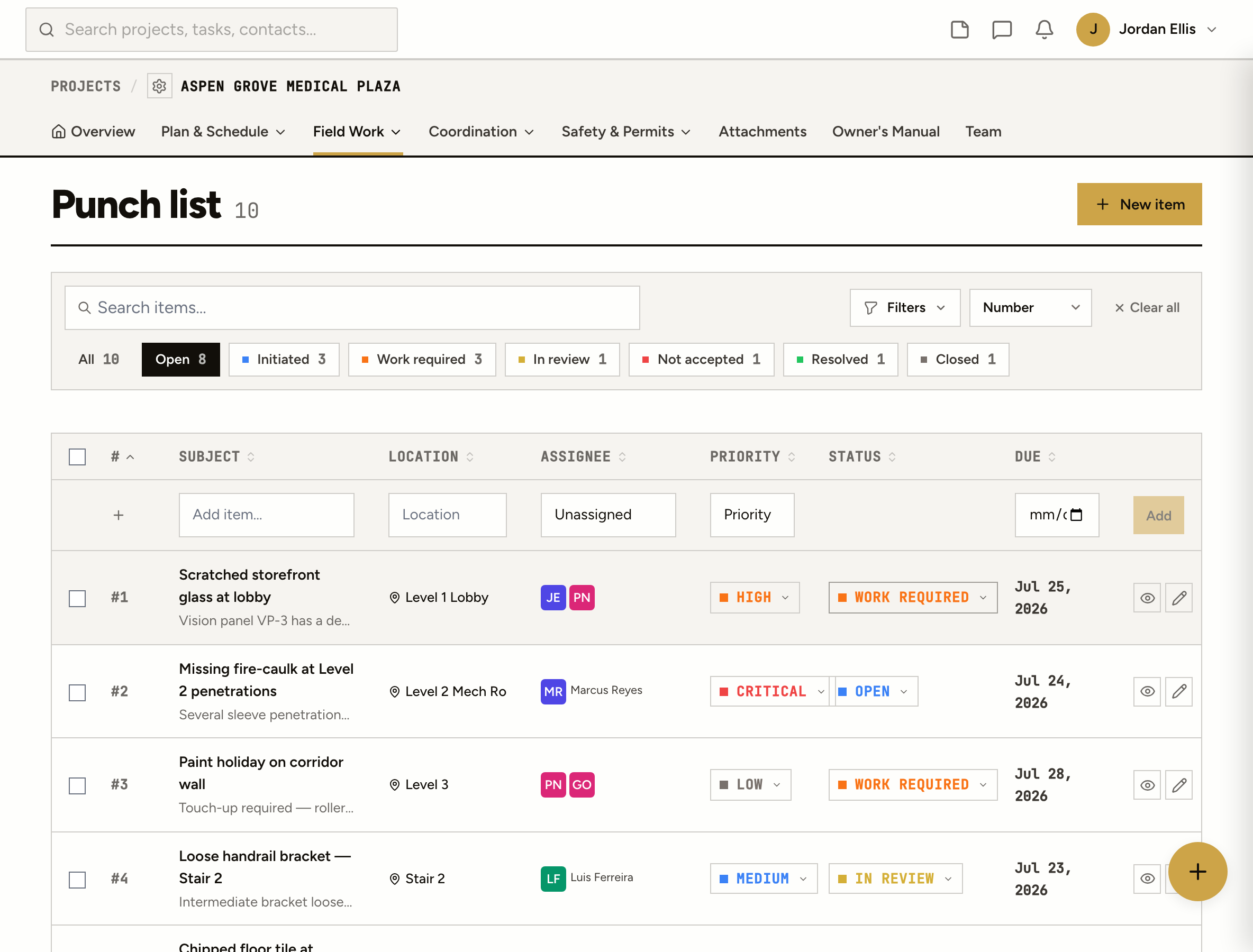
Log items by location with a photo from your phone, assign the trade, and walk each one from Work required to Closed. Every change is stamped with who and when.
Two hundred rows, three versions, and the one the painter has is from last Tuesday. Nobody knows which items are actually done.
Blue tape on the wall, a photo on your phone, and a note you mean to type up tonight. The tape falls off before the sub shows up.
The sub says it’s fixed. You walk the floor again to find out it isn’t, and there’s no record of who said what, or when.
How it works
Add the item from your phone with the location, the photo, a priority and a due date. Pick who’s on it. Or drop it straight from a markup on the drawing, a narrated site walk, or by telling Airen.
Assignees and followers are notified the moment it’s logged, and every time it moves. Per project you set the default punch manager, approver and followers once.
When the work is done the item goes to In review. The approver accepts it or sends it back as Not accepted, with a comment and a photo of what’s still wrong.
Every status change is stamped with who and when. Tag the item to an Owner’s Manual asset and the fix shows up in the owner’s handover without anyone filing it.
On the floor
Open the job, tap New item, take the picture. The status is one tap. Nothing to install and nobody to train.
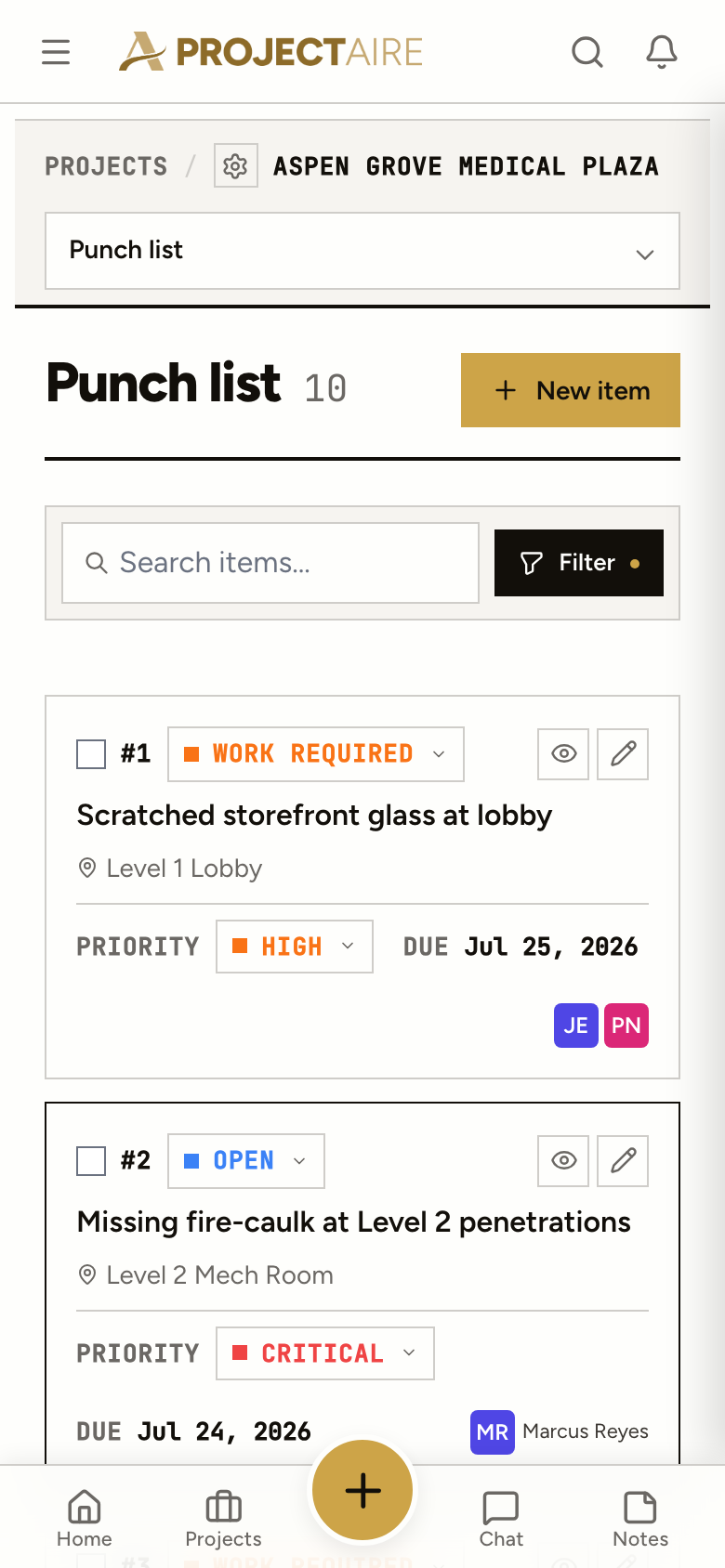
A location on every item, and a link back to the sheet when it came from a markup on the plans.
Assignees, a punch manager, an approver and followers. The people who need to know get told.
A due date and a priority, low to critical. Late items read as late, on the item and in the list.
Photos and comments with @mentions on the item itself, not in a text thread on somebody’s phone.
Walk and talk
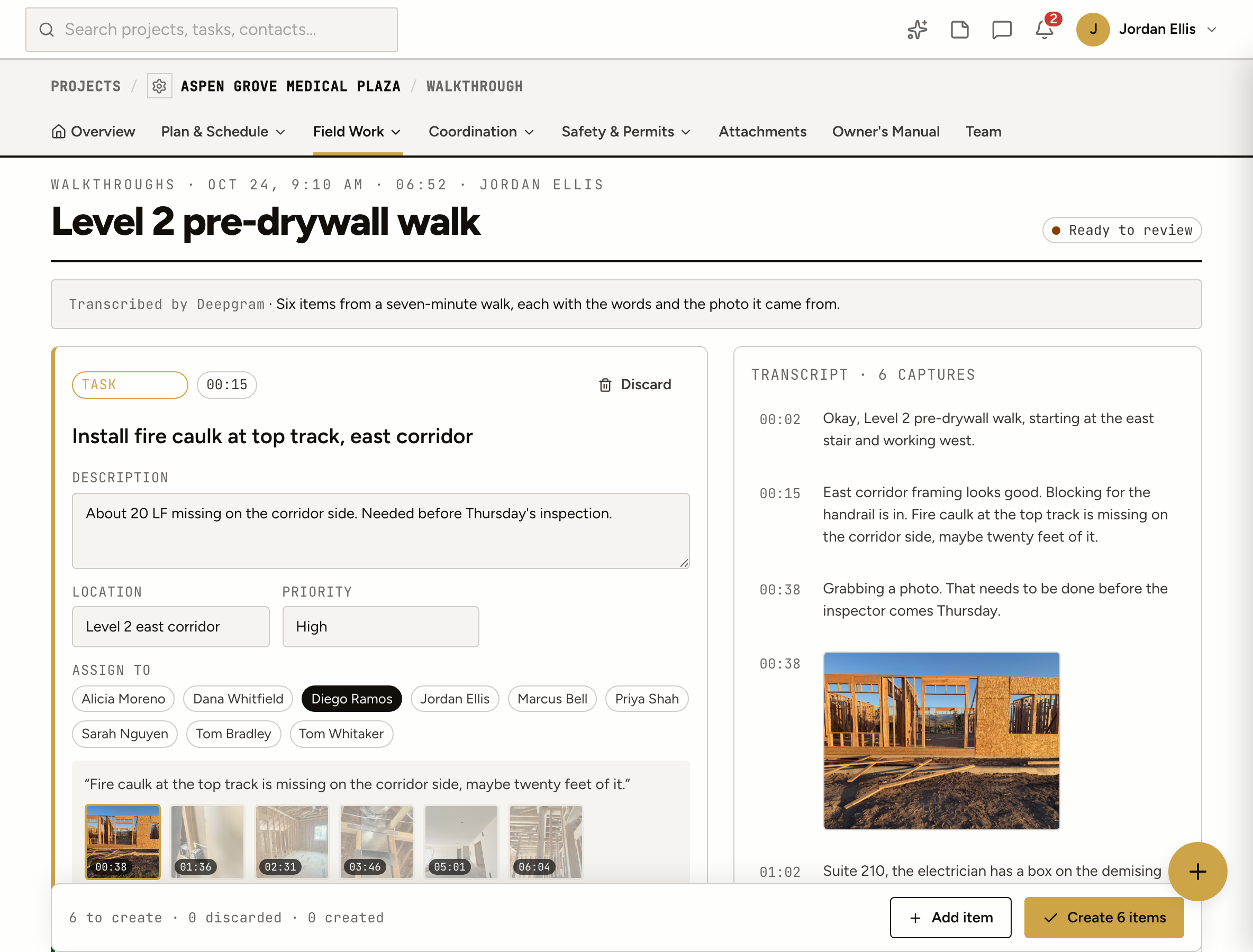
Record a narrated site walk and snap photos as you go. ProjectAire proposes the punch items, each with the words and the photo it came from. Nothing is created until you review it.
ProjectAire runs in your phone’s browser and installs to the home screen. Log items, add photos and move statuses from the floor. There’s nothing to download from an app store.
Open, Work required, In review, Not accepted, Resolved and Closed. The list shows a live count for each, plus overdue, so you can see where the punch stands at a glance.
Yes. Mark up a sheet in Plans and create the punch item from the markup. The item links back to the sheet with the markup highlighted.
If you let them. Per project you can give the client view, comment and attach on the punch list. Internal items can stay internal.
Yes. Import it as a CSV (save it from Excel) and check the preview before anything is created. You can export the list to CSV any time.
Yes. The all-projects punch list groups open items by job, with counts and overdue, so you can see which jobs are close to done.