

The notebook
Half a page of shorthand that made sense at 7 a.m. and doesn’t by 4 p.m. “Fix the thing by the stair” — which stair?
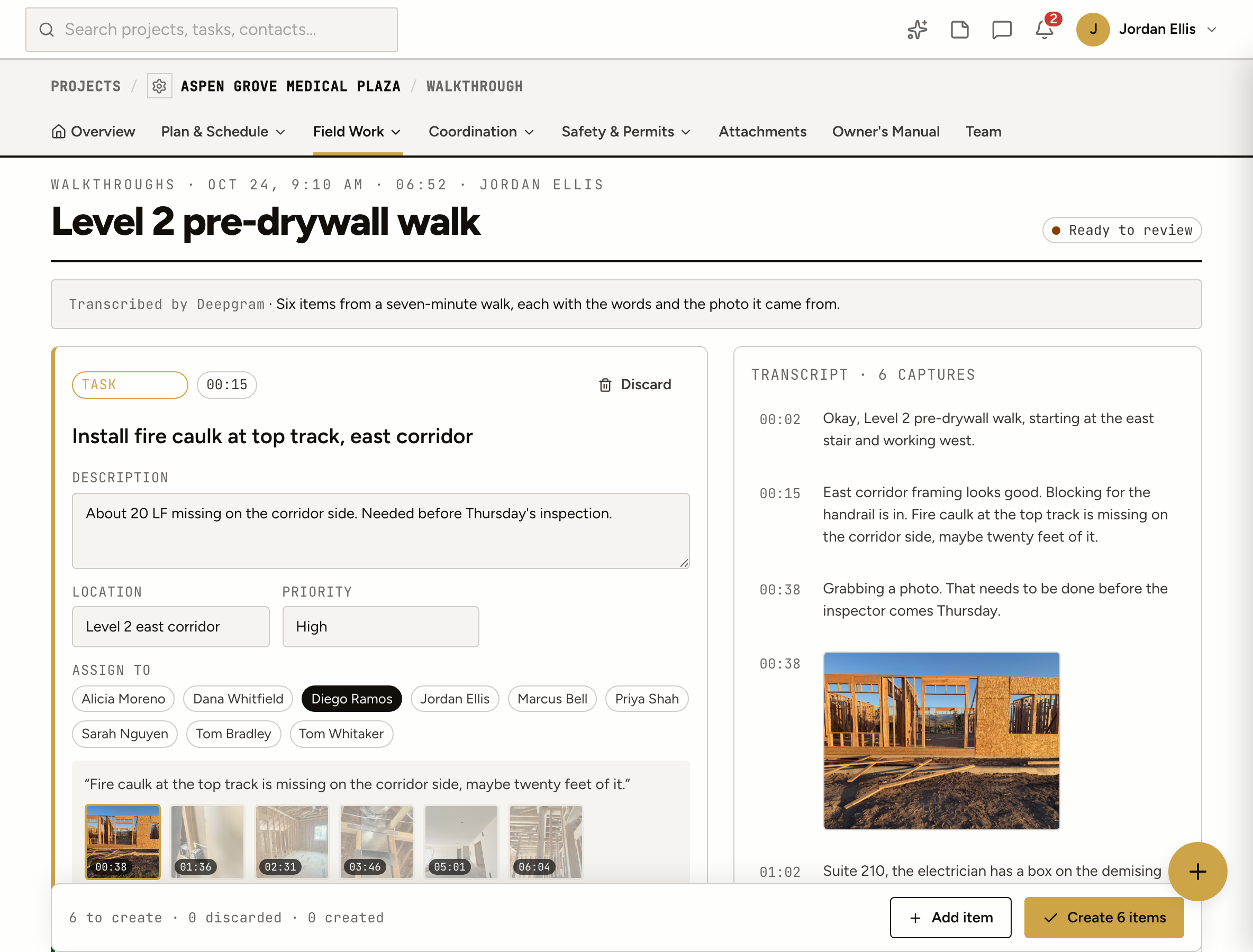
Hit record, walk the site and say what you see. Snap photos as you go. ProjectAire turns the walk into proposed punch items, tasks, observations and RFIs, each with the words and the photo it came from, ready for you to check and create.
Half a page of shorthand that made sense at 7 a.m. and doesn’t by 4 p.m. “Fix the thing by the stair” — which stair?
Forty photos with no labels, mixed in with the kids’ soccer game. Which one was the window? Which room was that?
The walk took twenty minutes. Typing it into punch items, tasks and RFIs takes another hour, after everyone else has gone home.
How it works
Open Walkthrough on your phone and talk through what you see. Snap photos or short video clips as you go; each one is stamped to the moment you took it. No app to install.
When you finish, the recording is turned into a timestamped transcript. AI reads it together with your photos, the project team and the items already open, so it doesn’t propose what’s already on the list.
Each proposed item shows the words it came from, the time in the walk and the photos taken then. Change the type, fix the wording, pick who it’s for, or discard it.
One button creates the tasks, punch items, observations and RFIs you kept. They’re numbered, assigned and sent out with the walk’s photos attached, the same as if you’d entered each one by hand.
Check its work
Click the timestamp and the transcript jumps to that moment, with the photos you took inline. You check the work in seconds instead of trusting it blind.
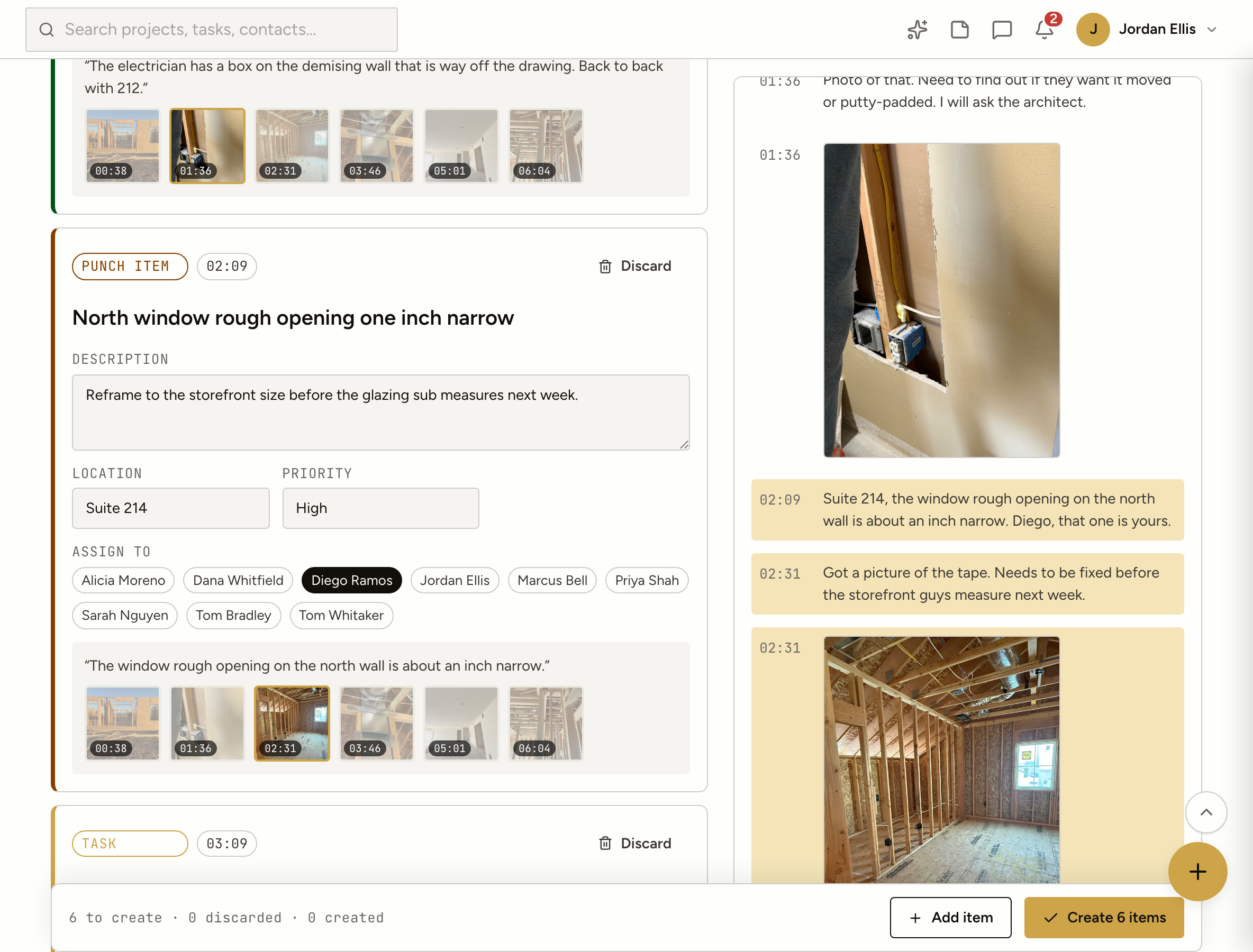
Location, priority and the trade or person it’s for, with the photo you took standing in front of it.
Follow-ups and to-dos that aren’t punch: “get the inspector back Thursday”, “order the missing hardware”.
Questions for the design team, drafted from what you said, waiting for you to send.
Safety and quality notes worth keeping on the record, even when nobody needs to fix anything today.
No. Every walk ends at a review page. Nothing becomes a task, punch item, observation or RFI until you look it over and create it.
The recording uploads in small pieces and retries on its own, so a dead spot costs seconds, not the walk. If your phone dies, the walk finishes with everything that arrived.
Yes. Photos and the still frames from short video clips go in with the transcript, and every proposed item points at the photos taken while you were talking about it.
Yes. Live mode suggests items as you talk. Keep or dismiss them on the spot; the final pass at the end respects what you kept and dismissed.
Your team: supers, PMs and engineers on the project. Walkthrough is hidden from clients, and the walk is visible only to people on the project.
No. Talk like you would to your PM walking beside you. Saying the room and who it’s for helps, but you don’t need a script.